I work on internal game development tools, where a design task can involve figuring out existing business rules, comparing ways to simplify a process, or explaining a flow to developers and QA.
For this article, I’ve picked five of the less obvious ways I use AI in that work. They cover investigating code, exploring different approaches to a problem, reviewing interface copy, organizing prototype screens, and finding edge cases. Each section includes the workflow, its limitations, and how I use it in practice.
01. Understand the Current State Through Code
When I return to a feature I worked on months ago, I often need to rebuild my understanding of how it works before I can change anything.
Exploring the interface helps, but some rules and dependencies aren’t visible on screen. Documentation can fill in the gaps, though it may describe an earlier version of the feature.
I use AI to investigate the relevant code and explain the logic behind the feature. That gives me a starting point for understanding what a design change might affect and which edge cases need a closer look.
Pros & Cons
Pros
- Can surface dependencies, validation rules, and potential edge cases that aren’t obvious in the interface.
- Helps explain complex features by focusing on the relevant parts of the codebase.
- Provides code references to discuss with developers when a behavior is unclear.
Cons
- Requires access to the relevant source code.
- Tracing dependencies across large repositories can use a lot of tokens.
- AI can miss or misinterpret logic, and the code it reads may differ from what’s running in production. It also can’t show how people actually experience the feature.
How to Do It
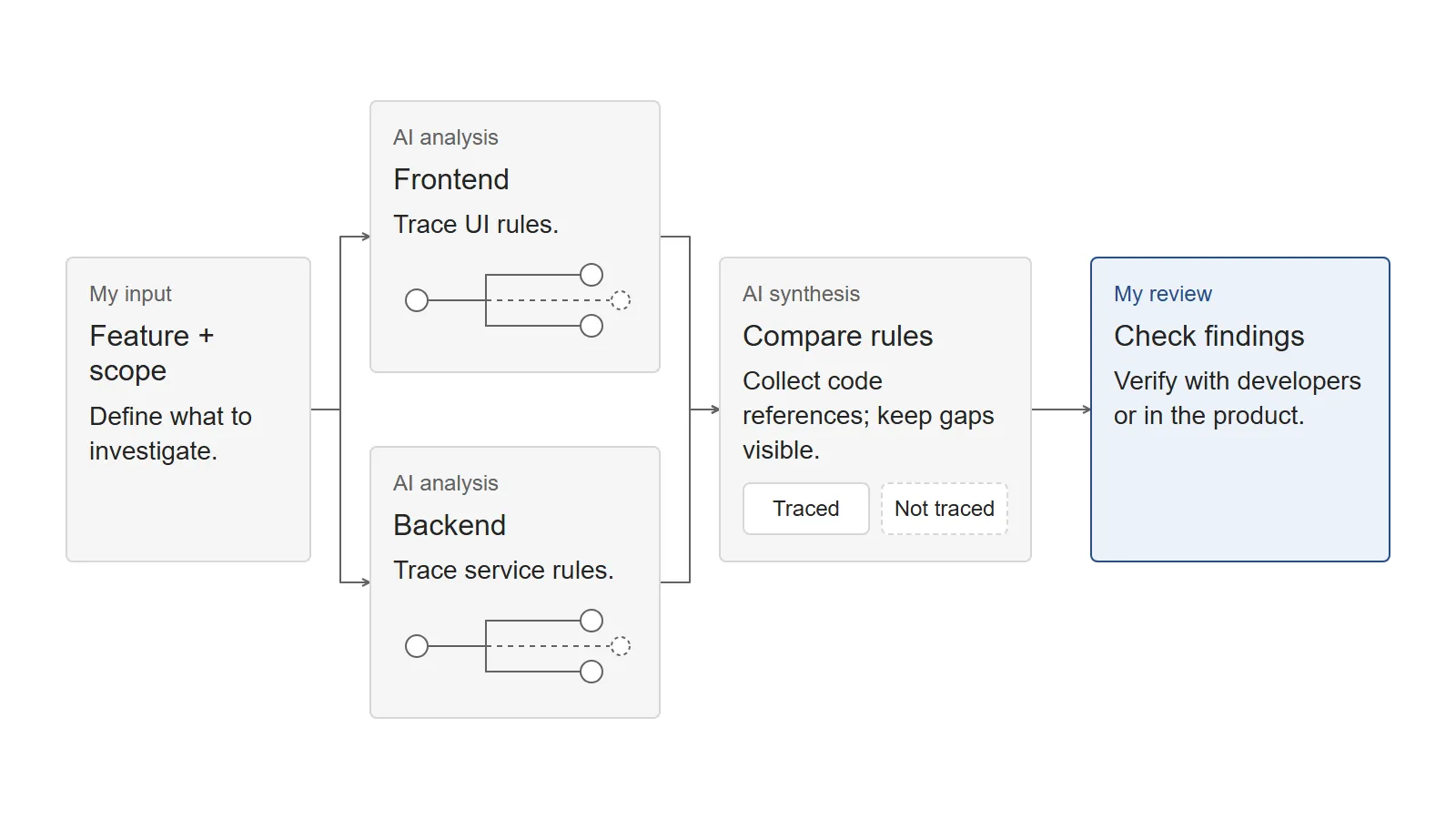
Use thread-based dependency tracing.
Start with a specific feature and follow the code that affects its behavior. I call each path through those dependencies a thread. Keep a record of what the AI checked and where the investigation stopped.
Workflow:
- Define the scope. Describe the feature or behavior you want to understand. Include the terms used in the interface and possible equivalents in the code.
- Find the starting points. Ask AI to locate the related entities, fields, actions, and statuses in the codebase.
- Trace each thread. For each relevant element, ask where it’s defined, read, changed, and validated. Check who can use it, how its status changes, and what else happens when someone interacts with it.
- Follow dependencies. Treat each relevant dependency as a new thread. In my workflow, I limit tracing to two levels beyond the starting elements to keep the scope and token usage manageable. Record anything that needs investigation beyond that limit.
- Close every thread. Mark it as
Tracedwith file and line references, orNot tracedwith a reason. The record should make it clear what was checked and what remains unknown. - Document the current state. Summarize the behavior, dependencies, potential edge cases, and unresolved questions in plain language. Separate what the code supports from what still needs verification.
Important: Investigate the frontend and backend separately, then compare their rules. Differences in validation or permissions, for example, can point to edge cases worth checking in the product.
My Approach
My team maintains more than 30 internal tools. I can’t keep every feature and its dependencies in my head, especially when I haven’t worked on one for a while.
I use a custom AI workflow to trace the relevant logic across our frontend and backend repositories.
I give it a specific feature to investigate, with instructions to follow dependencies, collect code references, and record anything it couldn’t verify.
This helps me rebuild context when I return to an older feature. It also brings implementation details into the design discussion that I might otherwise overlook.
I check important findings with developers or in the product before using them to make design decisions.
02. Explore High-Level Solutions, Not Just UI
Before I start designing screens, I want to understand whether a new interface would help solve the problem.
A web app might make sense. But a Slack bot, browser extension, automation script, or a change to an existing process might also do the job. Each option asks something different of the people who’ll use it and the team who’ll maintain it.
I use AI to explore those options while the direction is still open. It gives me alternatives to examine and helps me question assumptions in my initial ideas.
Pros & Cons
Pros
- Helps question whether a new interface is needed.
- Can suggest ways to use existing tools, integrations, or automation.
- Helps organize the trade-offs between approaches before detailed design begins.
Cons
- AI can suggest options that sound plausible but don’t fit the team’s tools, constraints, or ways of working.
- Feasibility and implementation effort still need to be checked with developers.
- An option that looks simple to build may create ongoing maintenance work.
How to Do It
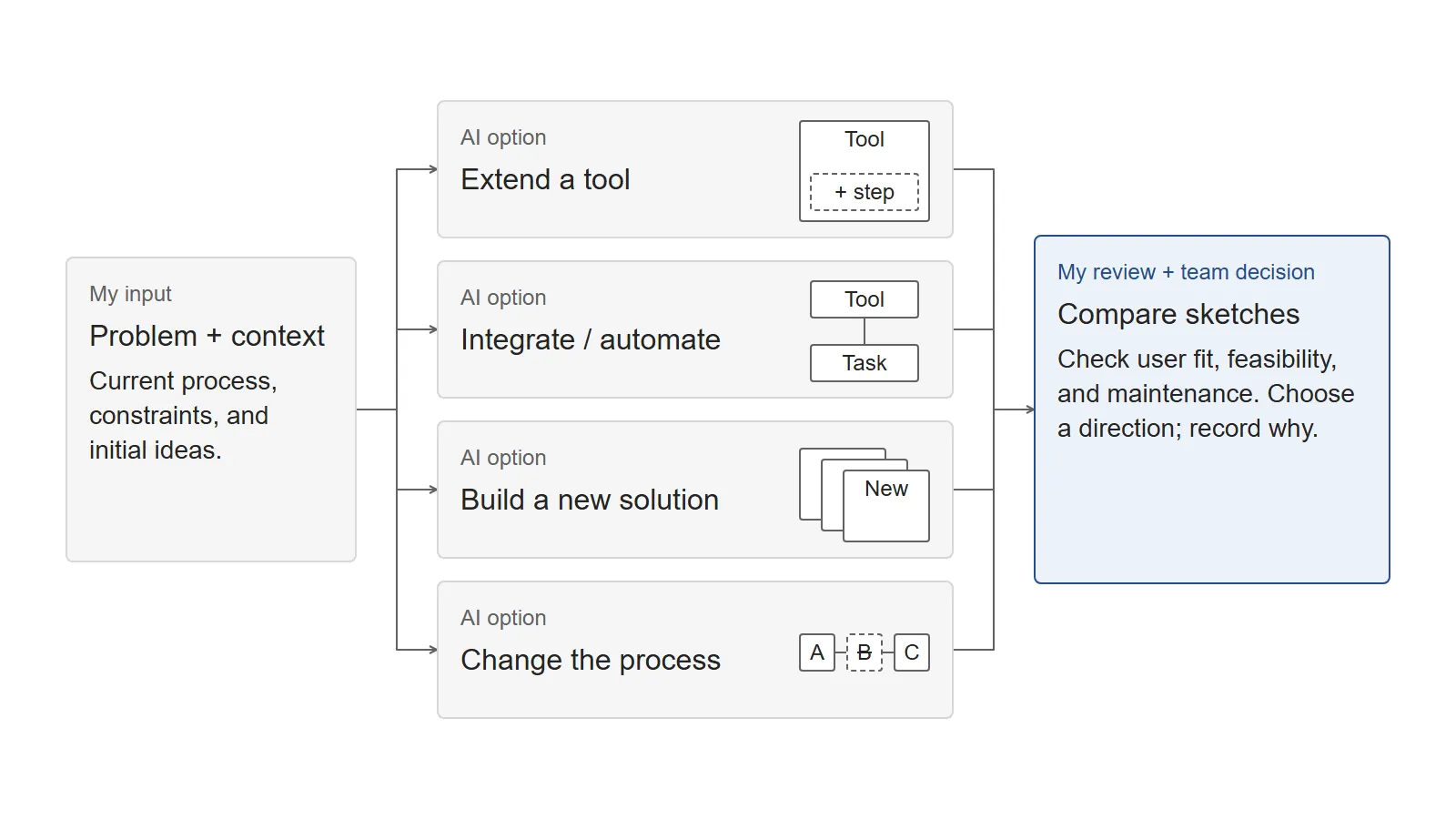
Explore different approaches before designing the details.
- Define the problem. Describe who experiences it, what they’re trying to achieve, and the constraints that matter. Include what happens in the current process.
- Start with your ideas. Share the approaches you’ve already considered and the reasoning behind them. Ask AI to question those assumptions and suggest alternatives.
- Explore different directions. Ask for a small set of approaches that work in different ways. These might involve extending an existing tool, integrating a service, building something new, automating a task, or changing the process.
- Compare the trade-offs. For each approach, consider what changes for users, what it would take to build and maintain, and which constraints apply. Keep assumptions and unanswered questions visible.
- Sketch each approach. Use lightweight diagrams, workflows, or rough interactions to explain how each option would work. Keep them at a similar level of detail so they’re easier to compare.
- Validate and decide. Review the options with developers and stakeholders. Check whether they fit the way people work and what the team can support. Record the reasons for the chosen direction and for setting the others aside, including anything that still needs validation.
Key principle: Make room for options that change how the task gets done. Several layouts for the same screen still leave the underlying approach unexplored.
My Approach
My department works on simplifying other teams’ work. Depending on the problem, we might extend an existing tool, integrate a service, automate a workflow, or change the process so a step is no longer needed.
I use AI to explore these directions before I commit to detailed UX design. At that stage, I want enough detail to understand how an option would work and what we’d need to check.
Lightweight sketches help me explain each approach and discuss its trade-offs with developers and stakeholders. They give us something concrete to review while the direction is still easy to change.
I look for an approach that fits the team’s work, with development and maintenance effort we can justify. Sometimes that leads to a new interface. Sometimes an existing tool is enough.
03. Review UX Writing with AI
A button label, error message, or tooltip can seem clear while I’m writing it. Reviewing it in context can reveal an ambiguity I hadn’t noticed: what happens after clicking the button, or what someone needs to do to resolve the error.
I use AI to review my drafts, question the wording, and suggest alternatives. I also ask it to explain the writing principles behind a recommendation. That gives me something to consider when deciding whether the change makes sense.
For me, those explanations are part of the value. I want to understand why a phrase might work better and use that reasoning the next time I write something similar.
Pros & Cons
Pros
- Can flag ambiguous wording, unnecessary complexity, and inconsistent terminology.
- Suggests alternatives using the UX writing guidelines I provide.
- Explains recommendations so I can review the reasoning and apply it to other copy.
Cons
- AI can misunderstand product terminology or what someone is trying to do.
- Without enough context, suggestions can sound reasonable but say very little.
- The wording still needs review in the actual interaction, especially when the message concerns a sensitive or complex action.
How to Do It
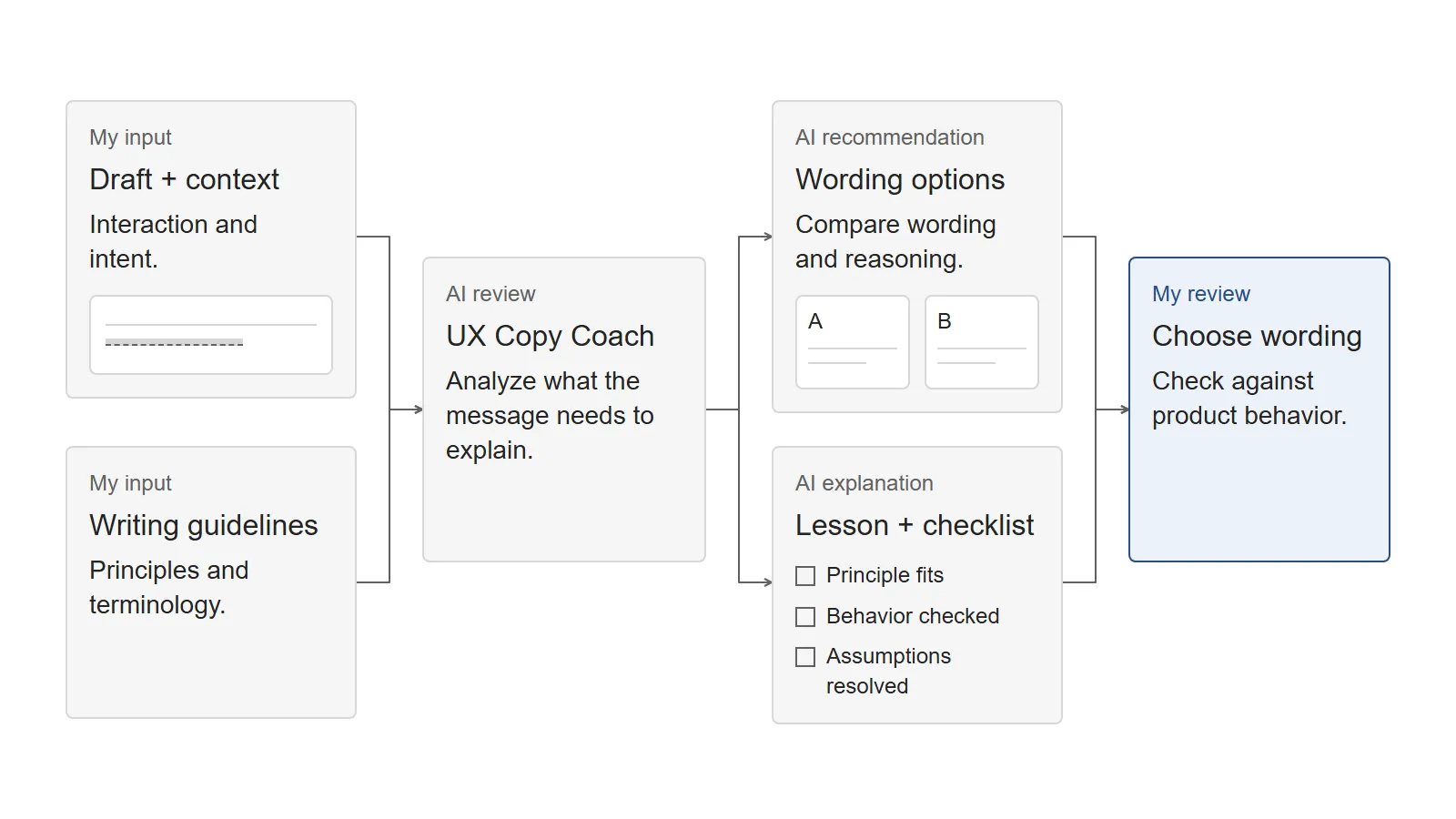
Build an AI writing reviewer around established guidelines.
- Provide writing guidelines. Give AI references for clarity, tone, accessibility, and terminology. Include any product-specific writing rules it needs to follow.
- Share the UI copy and context. Include the original text, where it appears, what triggers it, and what the user needs to accomplish. Explain what happens after the action and any layout or length constraints.
- Review the copy. Ask AI to flag specific weaknesses and recommend a revision. Request two or three alternatives when they offer a meaningful difference in wording or emphasis. If the original works, it should be able to say so.
- Explain the reasoning. Ask it to connect each recommendation to the relevant writing principle and interaction. Check whether the explanation fits the situation.
- Validate and refine. Check the wording against product behavior, the surrounding interface, and what users need to understand. Resolve any assumptions before using the copy.
My Approach
I created a custom AI skill called UX Copy Coach to review interface text in the internal game development tools I work on.
It uses three reference documents covering Material Design writing principles, button microcopy, and inclusive, accessible language.
I submit a draft with its context. The skill explains what the text needs to communicate, recommends wording, and offers alternatives where they’re useful. It also points out weaknesses in the original and explains the reasoning behind its suggestions.
The review includes a short lesson and a checklist. These help me look more closely at the recommendation: which principle applies, whether it fits this interaction, and what I still need to check in the product.
04. Turn Your Prototype into a Visual Canvas
When presenting a code-based prototype to developers and QA, I want to show how the screens and states fit together. Clicking through the flow shows the interactions, but makes it harder to compare states side by side.
An AI agent can help capture screens from the running prototype and arrange them on a visual canvas, grouped by flow. That gives the team a way to review the captured states together and discuss specific parts of the solution.
Pros & Cons
Pros
- Shows captured screens and UI states side by side.
- Provides a shared reference for discussing flows with developers and QA.
- Makes it possible to compare states without repeating the steps needed to reach each one.
Cons
- Requires a working, code-based prototype and access to the relevant screens and states.
- The agent may miss states or capture them incorrectly, so the results need review.
- Setup may need technical adjustments, depending on the framework used by the prototype.
How to Do It
Use an AI-powered design canvas to visualize your prototype.
- Run your prototype. Make sure the application is running and the flows you want to capture are accessible.
- Install design-canvas. Follow the instructions in the original repository. Check the framework requirements before setting it up.
- Identify screens and states. Ask the agent to inspect the application and list what it plans to capture. Review the list for missing screens or states before continuing.
- Generate the canvas. Have the agent capture screenshots and group them into flows, with related states placed together.
- Review and share. Check that the captures show the intended states and that the flows make sense. Add comments and use the canvas as a reference in team discussions.
My Approach
I discovered design-canvas, a Claude Code skill built by Volomydyr.
I wanted to use it to present my code-based UX prototypes to developers and QA. Having the screens and states laid out together would let us look across a flow while discussing individual parts of it.
My project uses Vite, while the original tool was built for Next.js App Router, so I adapted the integration to my setup. I also removed the exploration feature because I didn’t need it for presentations.
The core idea and functionality come from the original project. My changes were specific to how I wanted to use it.
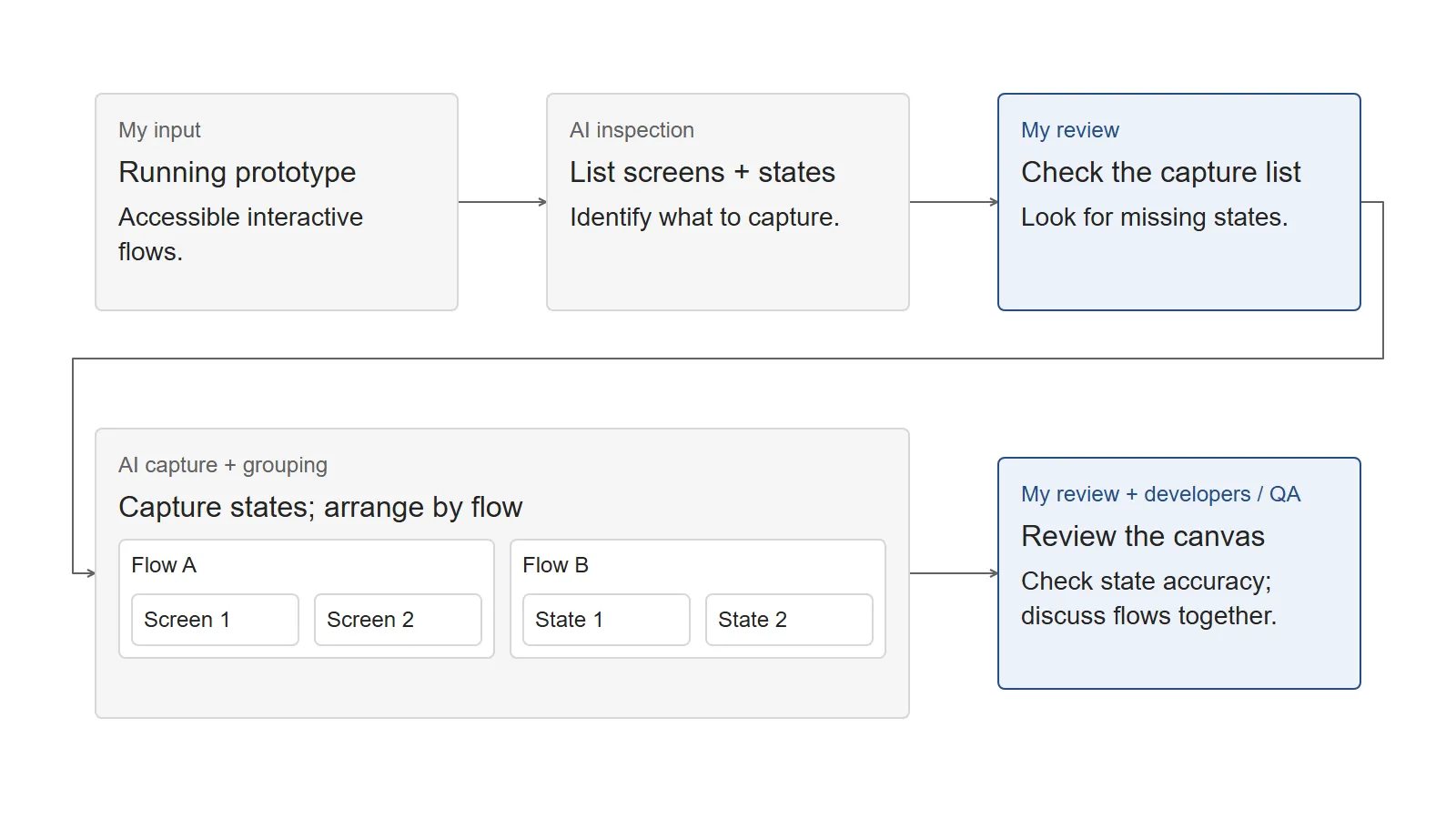
Worth remembering: The canvas shows captured states. I still need the interactive prototype to review what happens between them.
Tool & Credits
design-canvas by Volomydyr
GitHub: design-canvas repository
Website: volomydyr.com
Built for Next.js App Router. Other frameworks may require adaptation; check the repository for current requirements.
05. Find Edge Cases in Your UX Solution
A flow can look complete when I walk through it with valid data and the right permissions. I also need to consider what happens if two people edit the same item, permissions change during a task, or an action fails partway through.
I use AI to review a proposed solution for scenarios like these. It gives me a list to examine alongside the requirements and existing behavior, so I can decide what needs attention before development.
Pros & Cons
Pros
- Can surface states, dependencies, and failure scenarios I haven’t considered.
- Helps identify gaps in a proposed solution before handoff.
- Provides a structured way to review what happens beyond the main flow.
Cons
- Without enough product context, AI can suggest scenarios that don’t apply.
- Treating every suggestion as a requirement can create unnecessary design work.
- Feasibility and priority still need to be checked with the people responsible for the implementation and product decisions.
How to Do It
Review each feature and action systematically, then decide what deserves attention.
- Provide your solution. Share the proposed flows, interactions, relevant requirements, and known constraints. Include who uses the feature and what they’re trying to accomplish.
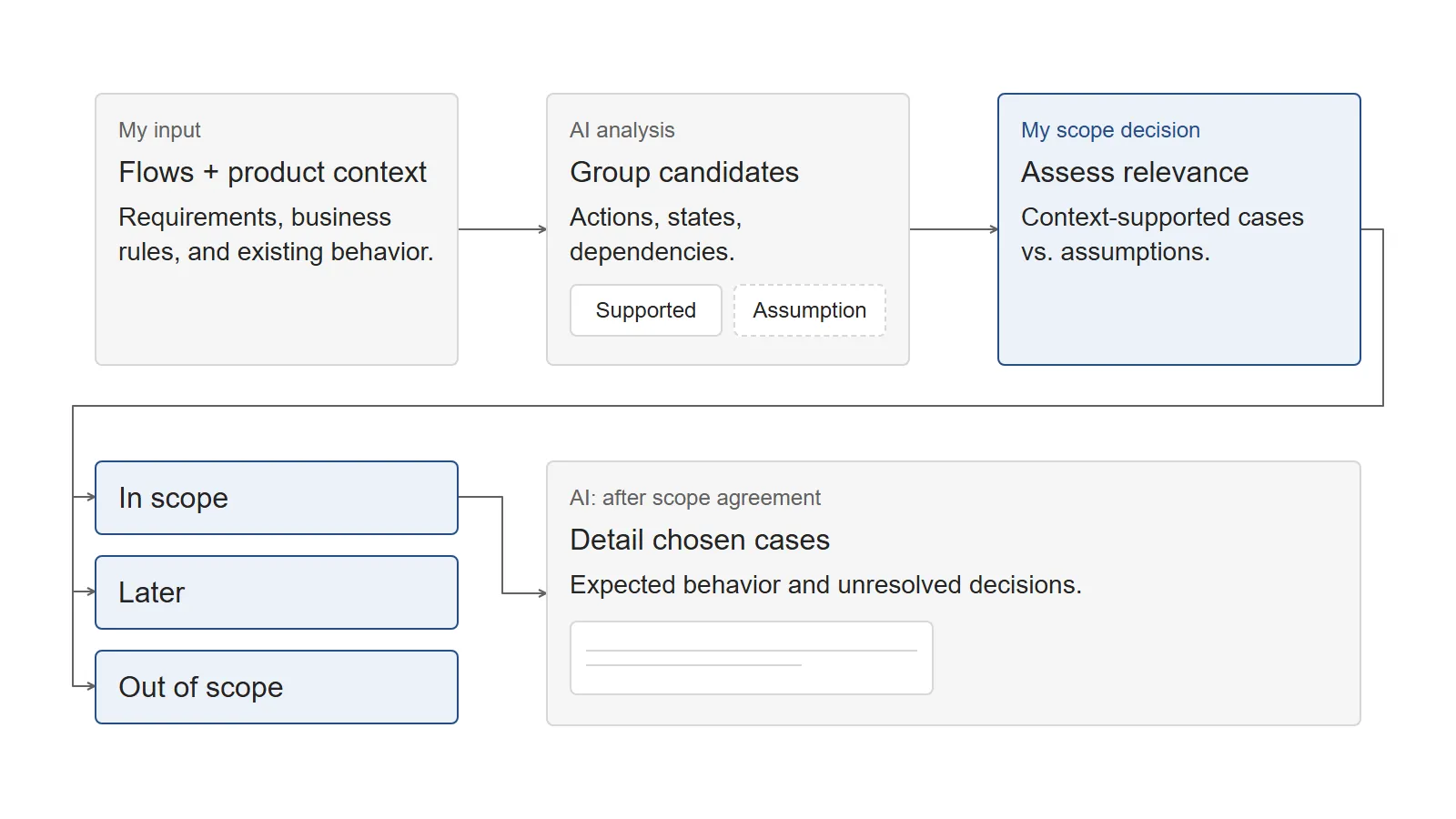
- Check existing behavior. Provide current-state documentation, business rules, and related features where available. Ask AI to distinguish cases supported by that context from hypotheses that need validation, and skip cases the solution already handles.
- Explore action states. For each important action, review what happens while it’s processing, after it succeeds or fails, and when it’s unavailable. Check empty states where relevant. Some states won’t apply to every action.
- Investigate dependencies. Consider permissions, simultaneous edits, invalid values, unavailable integrations, and conditions that can change during a task. Focus on dependencies relevant to the feature.
- Review the candidates. Ask AI to group overlapping cases and explain the potential impact of each one. Review its suggested priorities and check any assumptions that affect whether a case matters.
- Decide the scope. Mark each case as In scope, Later, or Out of scope. Document the expected behavior for the cases you choose to address, along with any decisions still needed. Keep a brief reason for postponing or excluding a case.
Key principle: Finding an edge case doesn’t automatically mean adding an error message or confirmation dialog. Consider what someone needs to understand the outcome, recover, or avoid losing work, then decide how the interface should respond.
My Approach
I use a custom AI skill to review proposed features and flows against the product context I provide: existing behavior, requirements, and known constraints.
It works through specific actions and their possible states, then presents candidate edge cases for my review. It also distinguishes scenarios supported by the context from ones that still need validation.
I decide which cases belong in the current iteration, which can wait, and which aren’t relevant. The agreed cases become part of the solution documentation, with unresolved behavior marked for a decision.
I review the candidates and agree on the scope before asking AI to work through the expected behavior in detail.
If anything is unclear, or you’d like to discuss how one of these approaches could work in your context, message me on Instagram @ux.smolii. I’m happy to go into more detail about any of them.